Upscale images online with AI to increase resolution by 2× or 4×. Turn low-resolution photos, product images, screenshots, and AI art into larger, clearer files while keeping the original aspect ratio.
↔
BeforeAfter
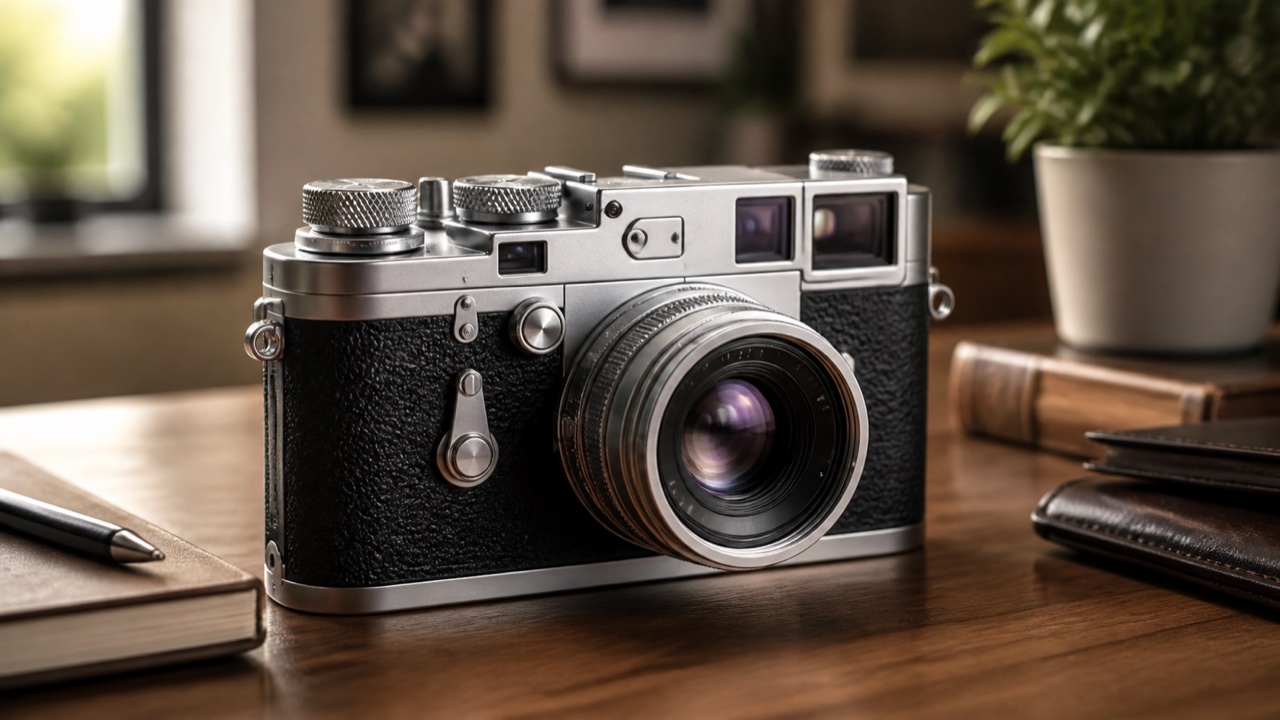
AI sharpens detail and increases usable resolution while preserving the original aspect ratio.
An AI image upscaler for every kind of image
Use ClipLumi as an image and photo upscaler for low-resolution portraits, screenshots, product photos, and AI art. Each example shows where extra resolution helps and what to inspect before download.
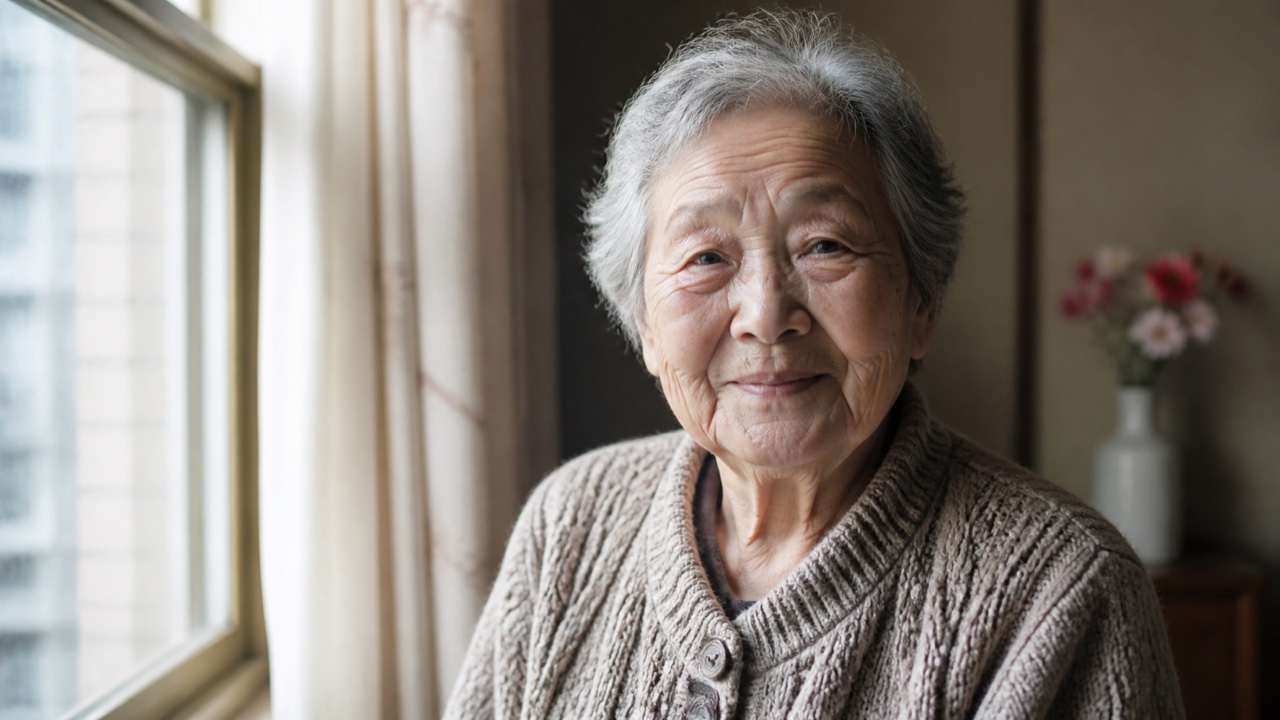
Portraits and old photos
Use the AI photo upscaler for portraits, scanned family photos, and other low-resolution photo files before using them in albums, slideshows, or larger displays. Drag the comparison to inspect facial edges, hair, clothing, and fine texture while keeping the original crop consistent.
↔
BeforeAfter
Documents and screenshots
Increase image resolution for screenshots, scanned documents, charts, and presentation graphics so interface lines and visual structure remain easier to read in reports, tutorials, and larger layouts. Always inspect small text and numbers after upscaling.
↔
BeforeAfter
E-commerce product shots
Upscale product images for storefront zoom, marketplace galleries, catalogs, and ads. Compare the low-resolution source with the clearer result to inspect product edges, materials, packaging, and visible texture before publishing.
↔
BeforeAfter
AI art and illustrations
Upscale AI-generated images, anime, posters, icons, and digital illustrations before using them in social posts, presentations, wallpapers, or print. Extra resolution helps line work, gradients, and decorative details hold up at larger sizes.
↔
BeforeAfter
How to upscale an image with AI
Upscale an image online in three steps: upload a clear source, choose 2× or 4× AI upscaling, then compare and download the higher-resolution result.
1
Upload a clear source
Choose a JPG, PNG, or WebP image up to 10 MB. The clearest source produces the most reliable enhancement.
2
Choose 2× or 4×
Use 2× for a moderate enlargement up to 2K, or 4× when you need more pixels up to 4K.
3
Compare and download
Drag the comparison handle, inspect the enhanced detail, and download the finished image.
AI Image Pricing for Generation & Editing
Transparent AI image pricing with monthly plans, yearly plans, and one-time credit packs. New accounts start with 1 free credit, and the exact model cost is shown before generation.
10,000 credits with monthly billing or 120,000 with yearly billing
Watermark-free downloads while paid credits remain
Priority processing
Full privacy — outputs stay in your account
Use credits across all available image models
Generate 1 to 4 outputs per request, charged per output
Cancel renewal anytime
AI Image Upscaler FAQ
Answers about AI image upscaling, regular resizing, low-resolution photos, 2× and 4× output, mobile use, bulk processing, formats, and privacy.
How do I upscale an image?+
Upload a JPG, PNG, or WebP file, choose 2× or 4×, then generate the higher-resolution result. Use the comparison slider to inspect edges and texture before downloading the finished image.
Can an AI image upscaler fix a pixelated photo?+
It can reduce the appearance of blocky pixels, rough edges, and compression artifacts when there is enough visual information in the source. It cannot faithfully recover details that were never captured, so heavily damaged or extremely tiny images may still have limits.
How can I make a low-resolution photo higher resolution?+
Start with the clearest copy you have and upscale it rather than repeatedly resizing an already compressed version. ClipLumi can increase image resolution at 2× or 4× while preserving the original aspect ratio, then you can compare the result before using it in a larger layout.
How do I upscale an image without losing quality?+
No enlargement can guarantee zero quality loss, but AI upscaling can produce a cleaner result than simple pixel interpolation. Choose 2× when that is enough for your target size, use 4× only when you need the extra resolution, and always inspect fine text, faces, and repeating textures after processing.
What is an AI image upscaler?+
An AI image upscaler enlarges an image while using learned visual patterns to improve the appearance of edges, texture, and compressed detail. ClipLumi uses AI super-resolution and specialized processing for some inputs instead of relying on basic browser resizing.
What is the difference between AI image upscaling and regular resizing?+
Regular resizing increases image dimensions by interpolating existing pixels. AI image upscaling uses learned visual patterns to estimate cleaner edges and texture as resolution grows. It can make an enlargement look more natural, but it cannot guarantee recovery of details that were never present in the source.
What types of images work best with an AI image upscaler?+
Clear low-resolution photos, product shots, screenshots, scanned images, illustrations, anime, and AI art are good candidates. Results are less predictable with severe motion blur, extremely tiny text, heavy compression, or badly damaged sources, so inspect important details before publishing.
What do 2× and 4× image upscaling mean?+
In ClipLumi, 2× targets up to twice the source width and height while keeping the result within 2K, and 4× targets up to four times the source dimensions while keeping the result within 4K. Choose the smallest scale that gives you enough pixels for the final use.
Does upscaling crop or reshape my image?+
No. The image keeps its original aspect ratio and composition. Larger inputs are fitted proportionally so the 2× result stays within 2K and the 4× result stays within 4K.
Can I use the AI photo upscaler on iPhone or Android?+
Yes. ClipLumi runs in a modern mobile browser, so you can upload a supported image, choose 2× or 4×, compare the result, and download it from an iPhone or Android device without installing a desktop editor.
Can I bulk upscale images?+
Yes. Active subscribers and users with paid credit-pack balance can submit multiple JPG, PNG, or WebP files in one batch, up to 10 images at a time. Credits are charged per image, and each image remains a separately tracked job so one failed file does not replace the results from successful files.
How many credits does image upscaling use?+
A single 2× upscale uses 3 credits and a 4× upscale uses 6 credits. Batch cost is calculated from the number of selected images, and ClipLumi shows the total before processing.
Which image formats are supported?+
ClipLumi accepts JPG, PNG, and WebP files up to 10 MB each. For better results, use the clearest available source rather than a screenshot or copy that has already been compressed several times.
Are my uploaded images public?+
No. ClipLumi does not publish uploaded images or upscaled results to a public gallery. Signed-in jobs are associated with private account history and handled according to the privacy policy.
Can I use upscaled images commercially?+
Users with remaining paid credits receive watermark-free HD downloads. Active subscribers also receive commercial usage rights, subject to ClipLumi's terms and the rights you already hold for the source image.