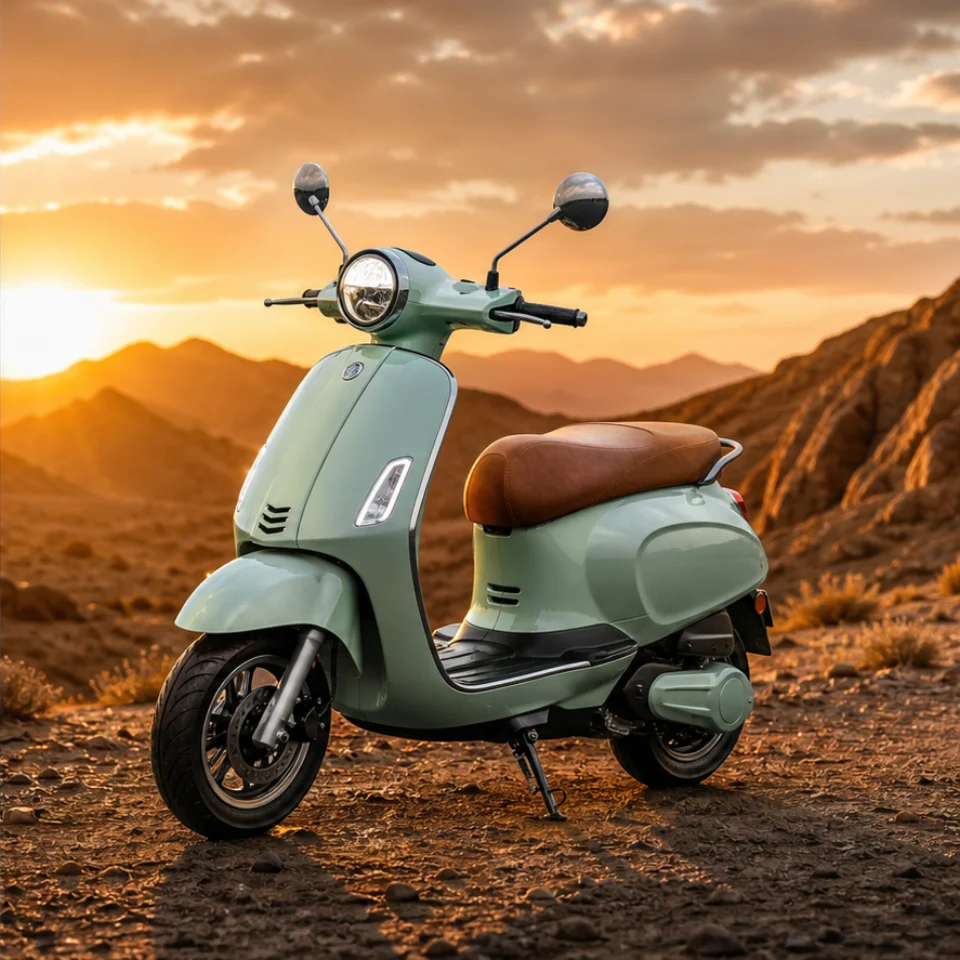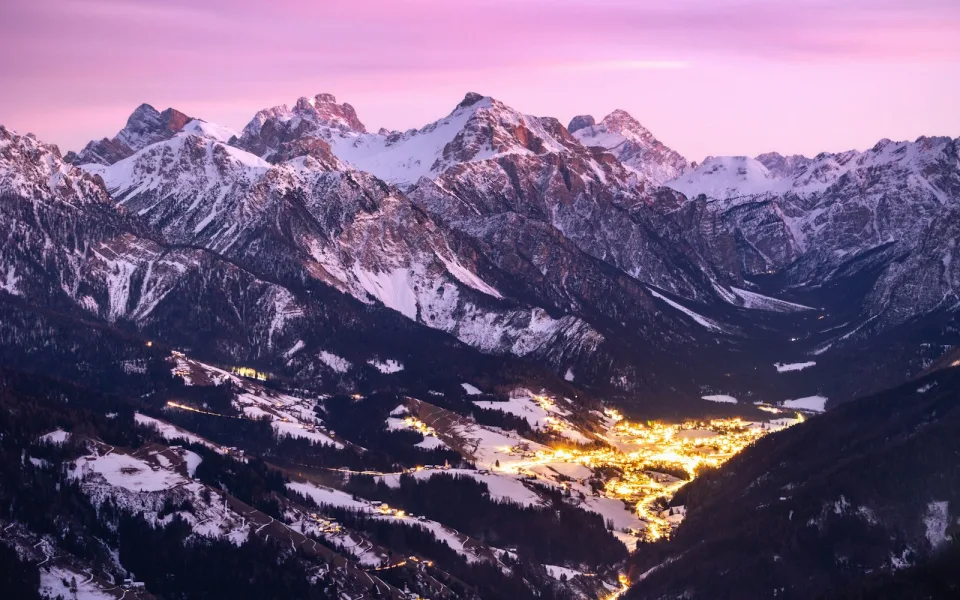
Bring in the frame you have
Choose a clear source where the subject, edges, and surrounding scene are easy to read.
Go from a tight crop to a layout-ready image in three clear steps.
Choose a clear source where the subject, edges, and surrounding scene are easy to read.
Pick square, portrait, or landscape. The selected ratio defines where the canvas needs more room.
Generate one expanded image, inspect faces, products, text, and transitions, then download the result you want.
See how extra canvas can solve real layout problems without scaling or squeezing the original subject.
Open up the sides for headline space, crops, and channel-specific layouts while the original subject stays at the center of the story.
Add usable negative space for marketplace cards, banners, or price copy without enlarging the product itself.
Create a taller or wider composition by continuing the environment around the subject instead of squeezing the original photo.
Carry skies, streets, interiors, and natural textures into a larger frame when the captured view ends too soon.
Use credits when you need them or choose a plan for regular image creation.
Billed annually · $240$120/year
Choose ProAvailable image models
 FLUX SchnellFLUX.2 Klein 4B
 GPT Image 2GPT Image 1.5
 Nano Banana 2 Lite
 Seedream 5.0 ProNano Banana 2Seedream 5.0 LiteSeedream 4.5
Billed annually · $480$240/year
Choose UltimateAvailable image models
FLUX SchnellFLUX.2 Klein 4BGPT Image 2GPT Image 1.5Nano Banana 2 LiteSeedream 5.0 ProNano Banana 2Seedream 5.0 LiteSeedream 4.5Billed annually · $960$480/year
Choose MaxAvailable image models
FLUX SchnellFLUX.2 Klein 4BGPT Image 2GPT Image 1.5Nano Banana 2 LiteSeedream 5.0 ProNano Banana 2Seedream 5.0 LiteSeedream 4.5Practical answers drawn from common image-expansion searches, with ClipLumi limits and costs stated clearly.
Choose one JPG, PNG, or WebP file, select the new aspect ratio, and generate. ClipLumi uses the source as an anchor and creates visual content only in the added canvas.
Yes. Select 16:9 or 4:3 to request a landscape frame. The model continues the surrounding scene rather than stretching the portrait, but important edges should still be reviewed.
An AI image expander uses outpainting to generate new pixels outside the captured frame. ClipLumi uses FLUX.2 Klein 4B for this workflow and keeps the submitted image as the visual reference.
Cropping removes part of a frame. Resizing changes pixel dimensions and can distort an image if its proportions change. Uncropping adds generated canvas around the source to reach a different composition.
The 16:9 option is designed to add room around the existing frame rather than cut into it. Generative output can vary, so check faces, products, logos, small text, and boundary details before publishing.
Choosing a file and previewing ratios does not create a billable job. A finished ClipLumi expansion requires sign-in and currently costs 2 credits; the exact cost appears on the Generate button before submission.
You can choose 1:1, 3:4, 4:3, 9:16, or 16:9. Each job produces one approximately 1MP image; 2MP output is not currently available on this tool.
ClipLumi accepts one JPG, PNG, or WebP file up to 10 MB. Clear subjects, visible context, and clean edges usually give the model stronger clues for continuing the scene.
It can produce convincing backgrounds and transitions, but it cannot know what existed outside the camera frame. Inspect identity, product geometry, repeated patterns, hands, text, and fine edges before using the result.
One 1MP result with FLUX.2 Klein 4B costs 2 credits. ClipLumi shows the charge before generation and stores the completed job in private account history.
Uploads and results are not posted to a public gallery. Signed-in jobs remain connected to private History, and the Create, ratio, History, result, and download views adapt to modern phone and tablet browsers.
Reframe one image for square, portrait, or widescreen layouts. ClipLumi keeps the original scene in place and creates only the space your new frame needs.