Keep the subject, change the style or outfit
Use a clear source portrait as the anchor, then describe the clothing, art direction, color palette, or environment you want to change without rebuilding the person from scratch.
Upload up to three reference images, describe what should change and what must stay consistent, then use an image-to-image AI model to create a new image from your source.
Choose an image-to-image AI model for reference accuracy, multi-reference editing, photorealistic scenes, or polished brand visuals.
Start from real before-and-after image-to-image recipes, then open the full template with the comparison intact.
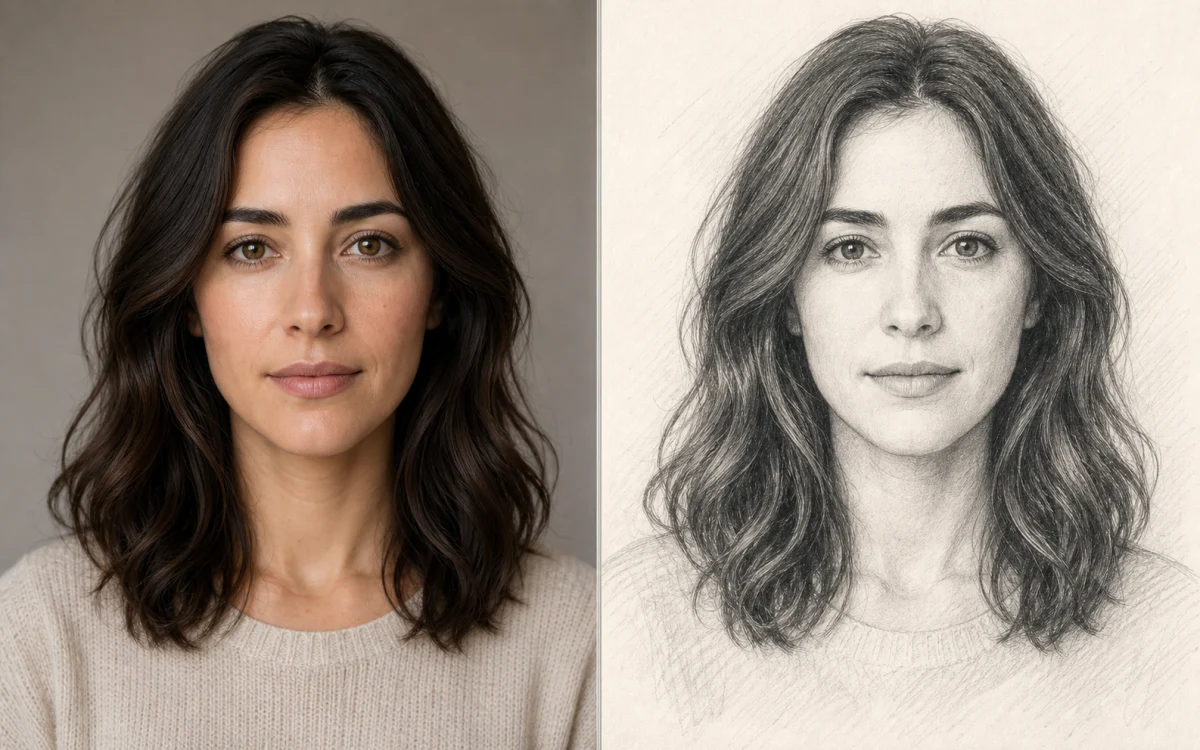
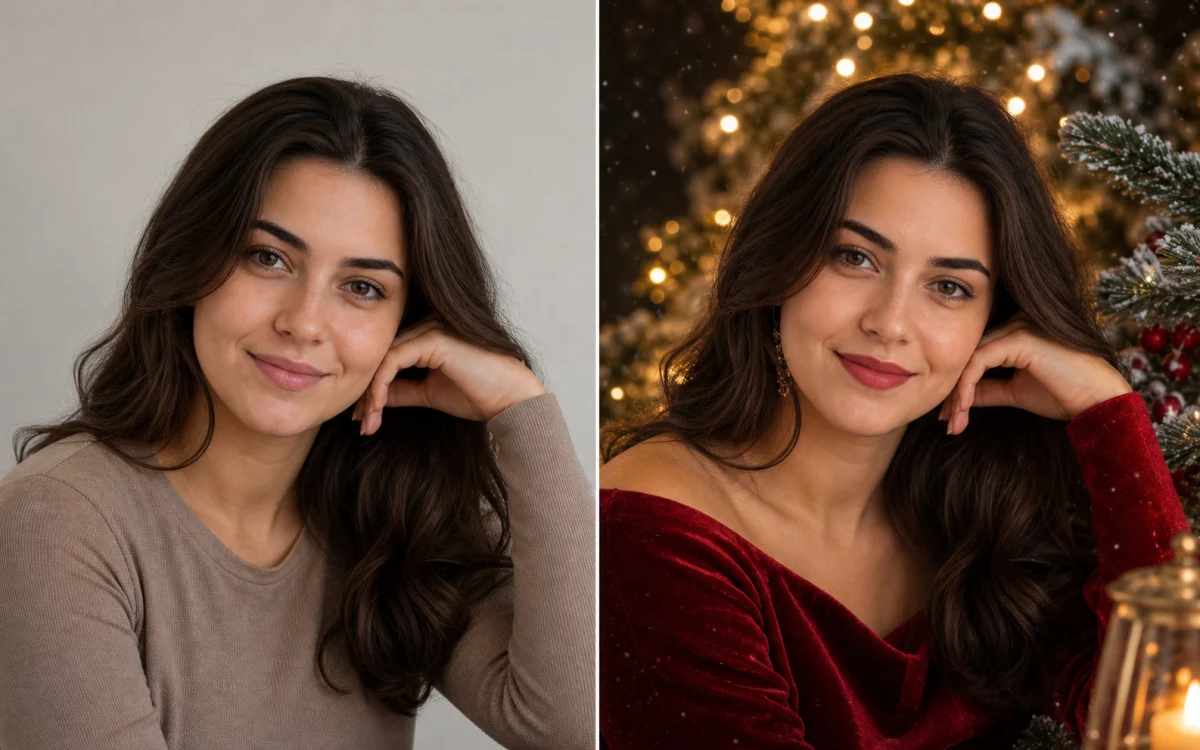
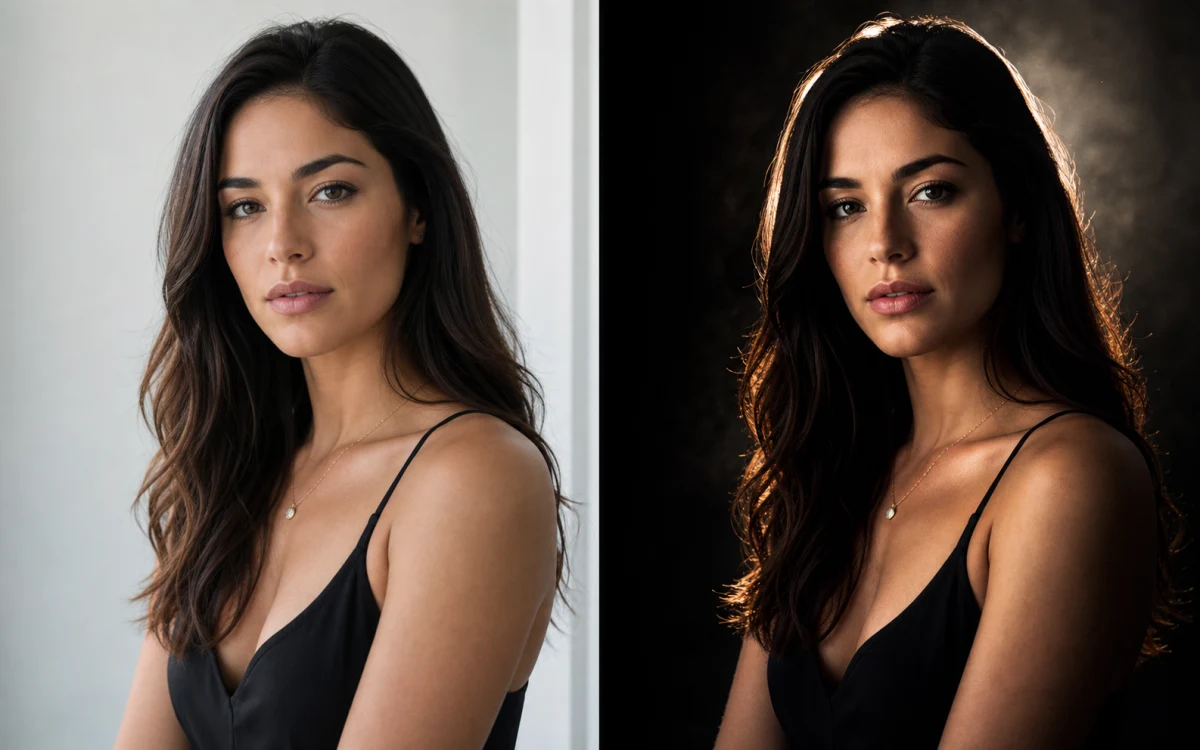
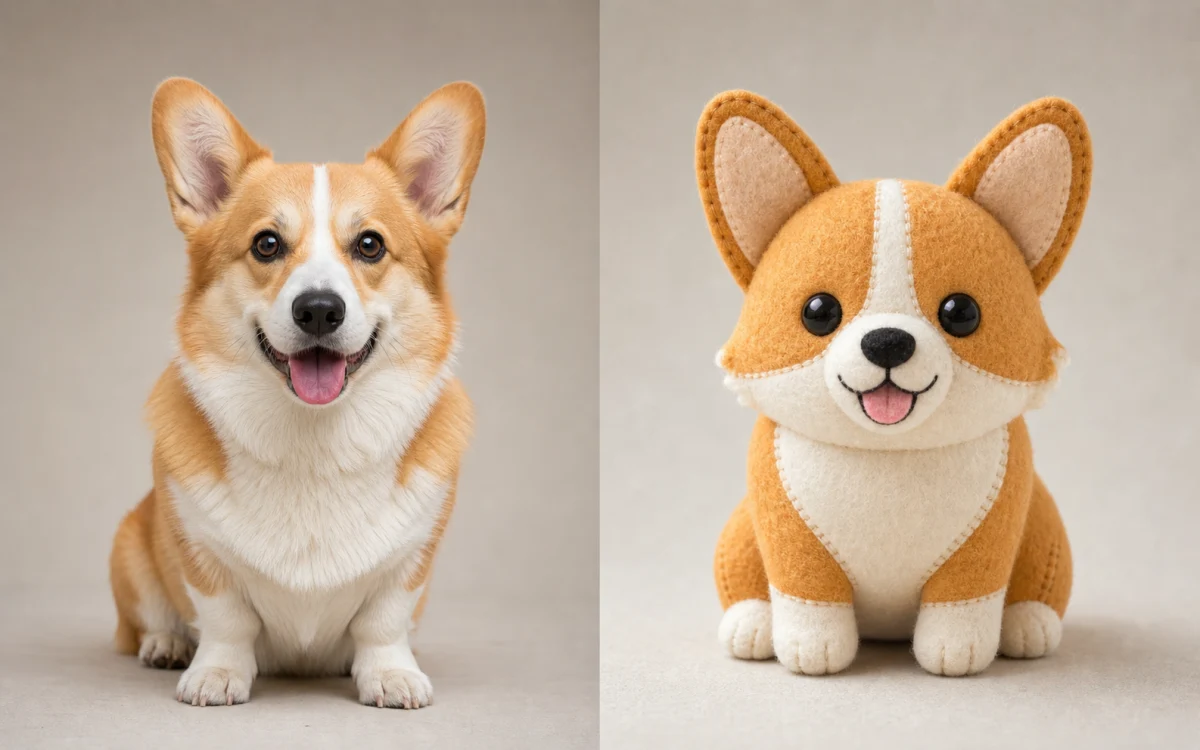
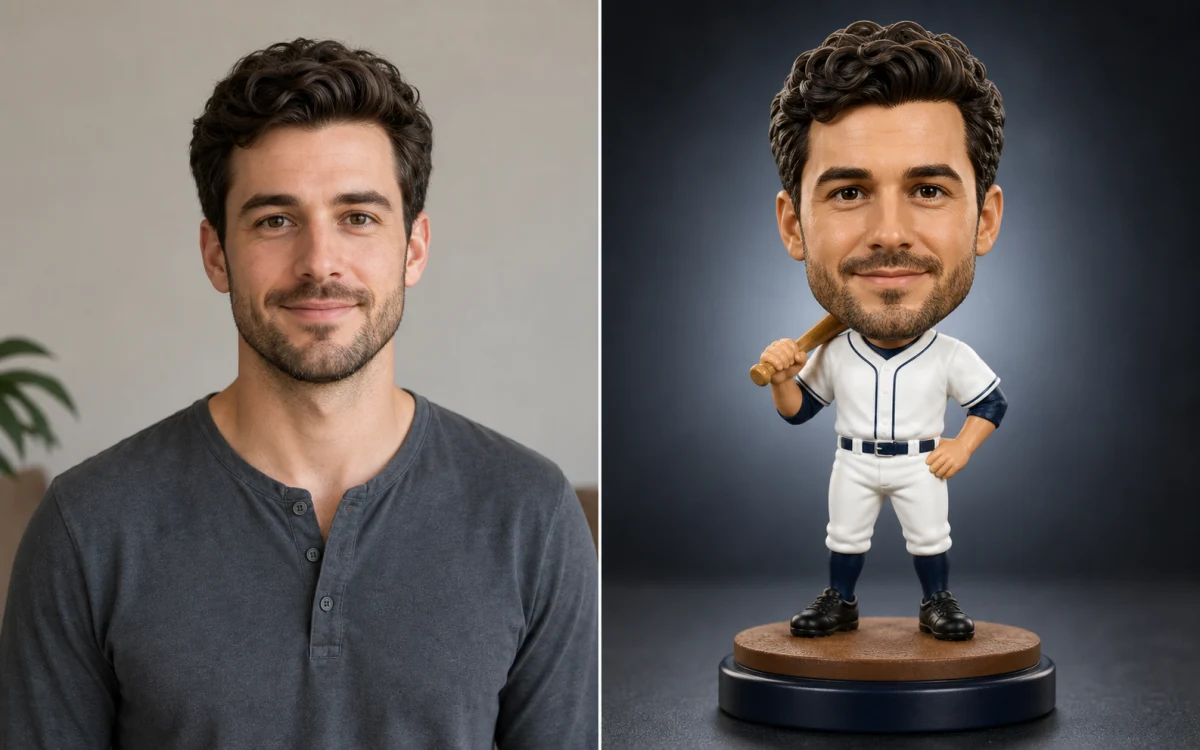
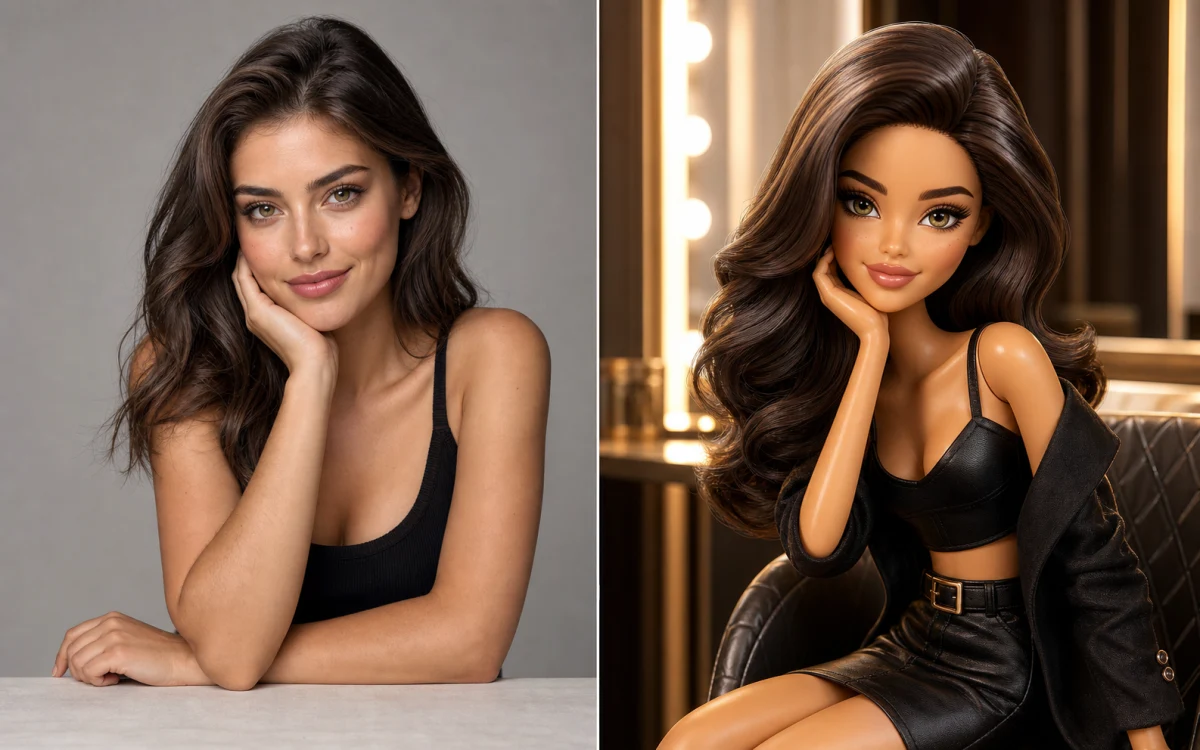
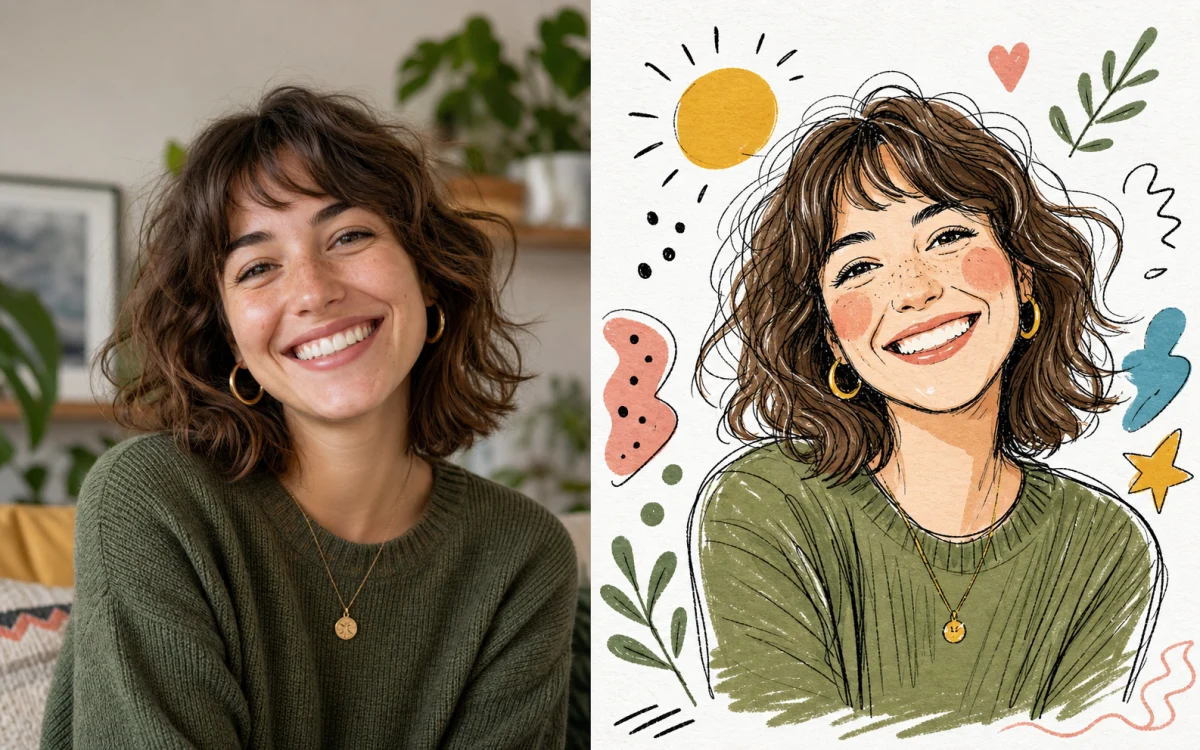
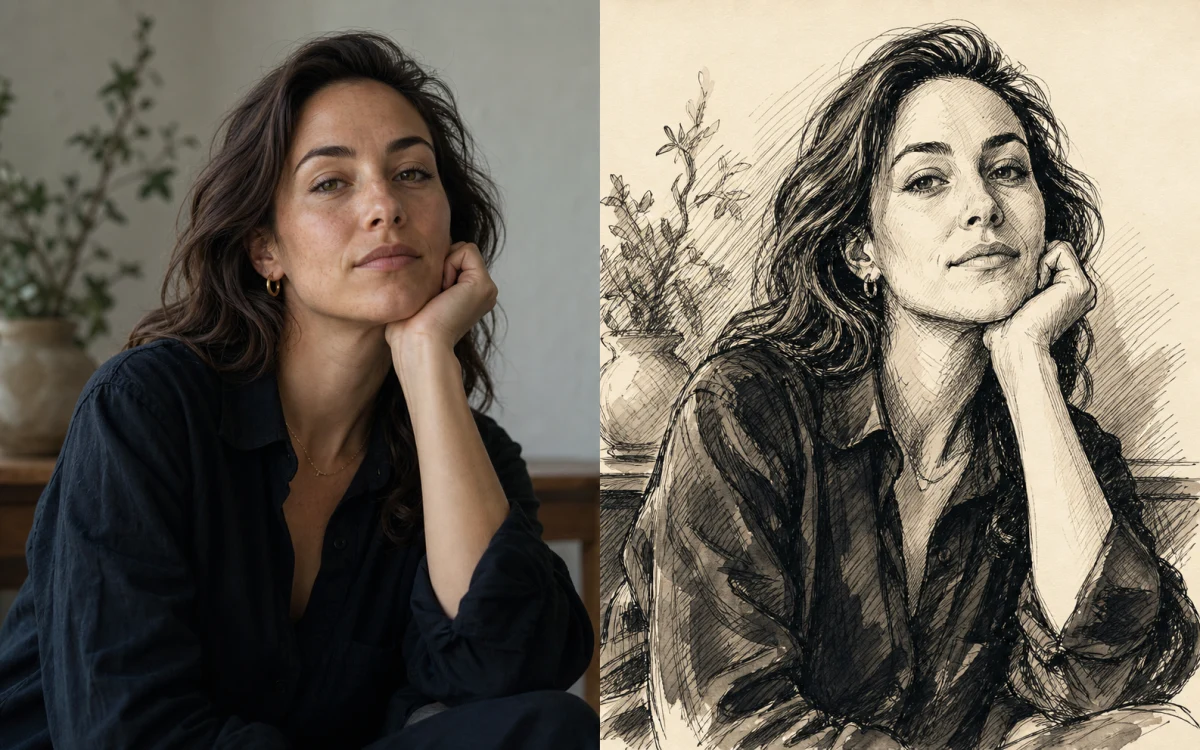
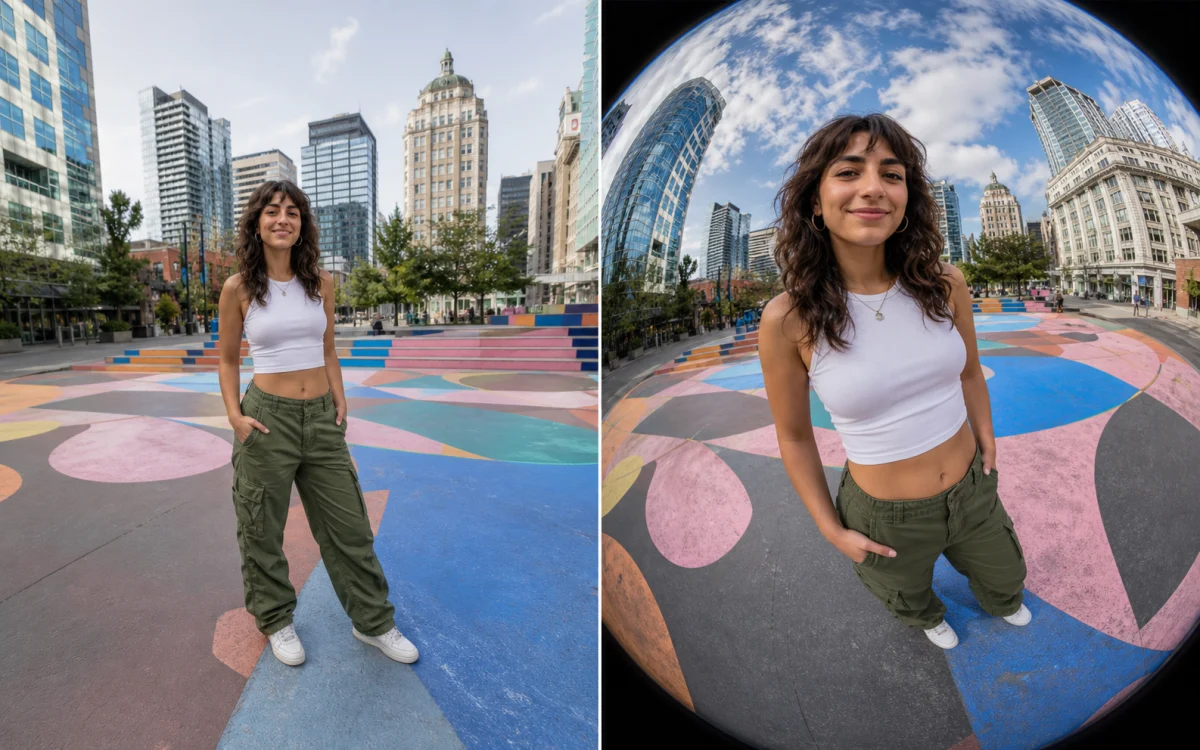
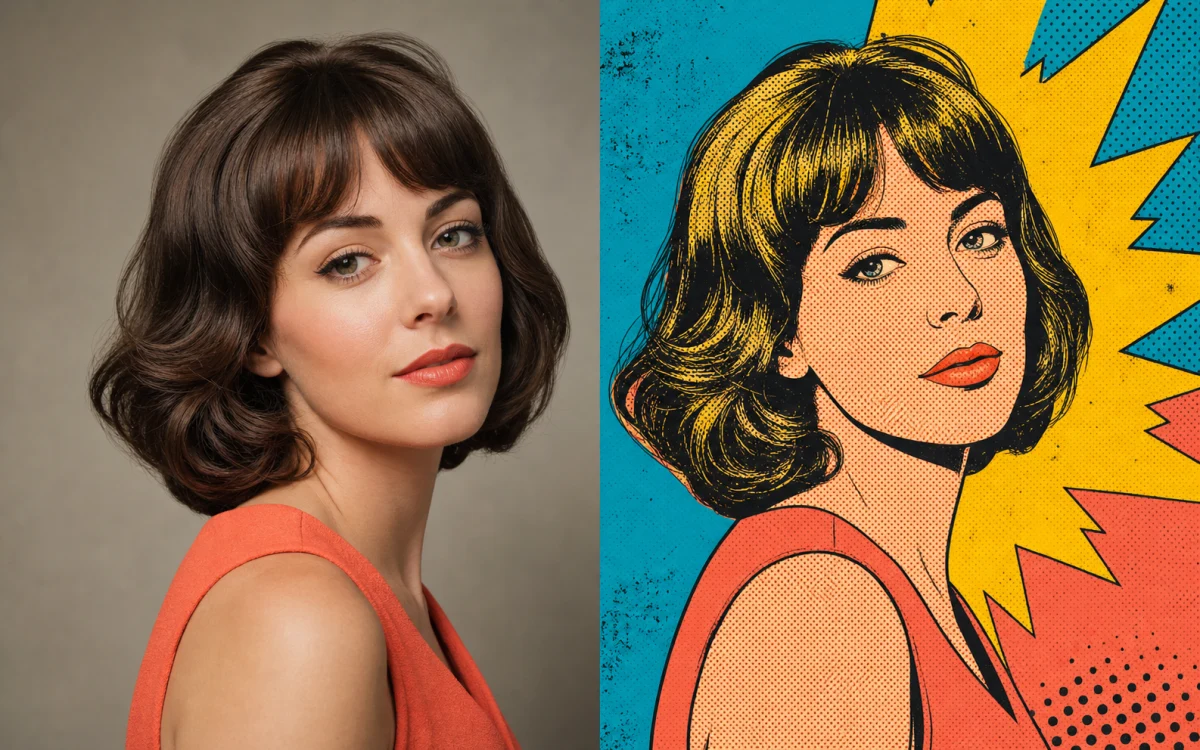
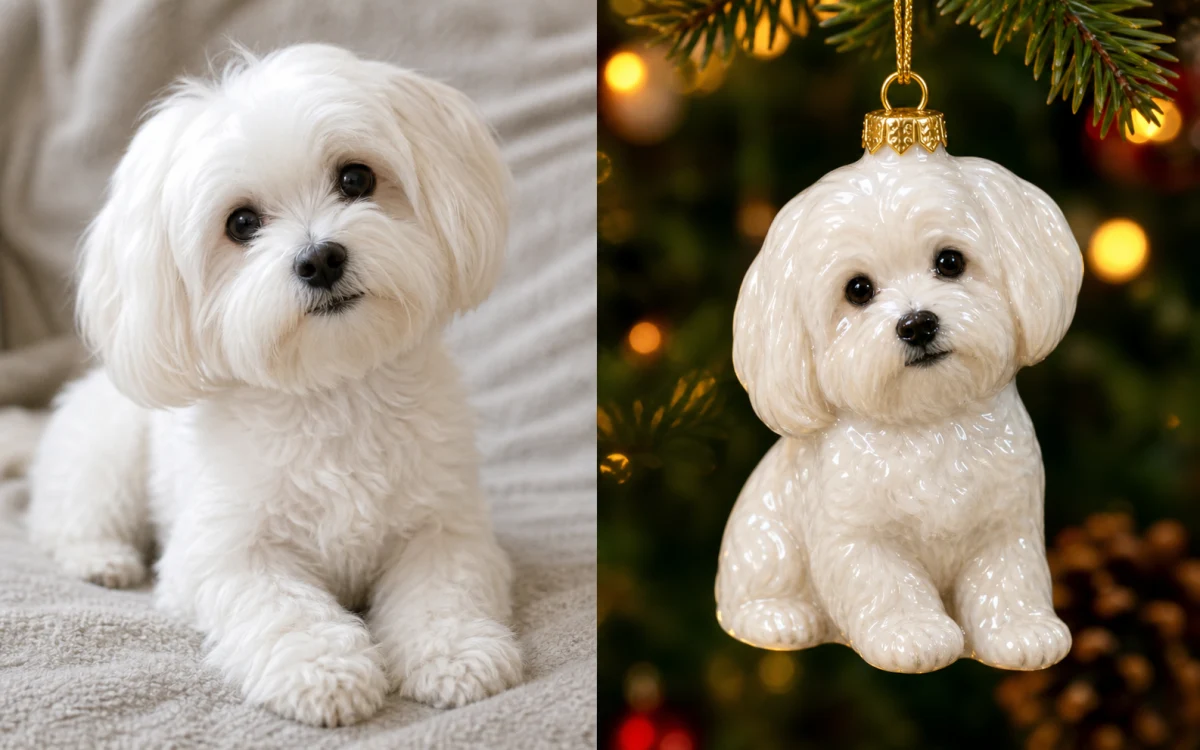
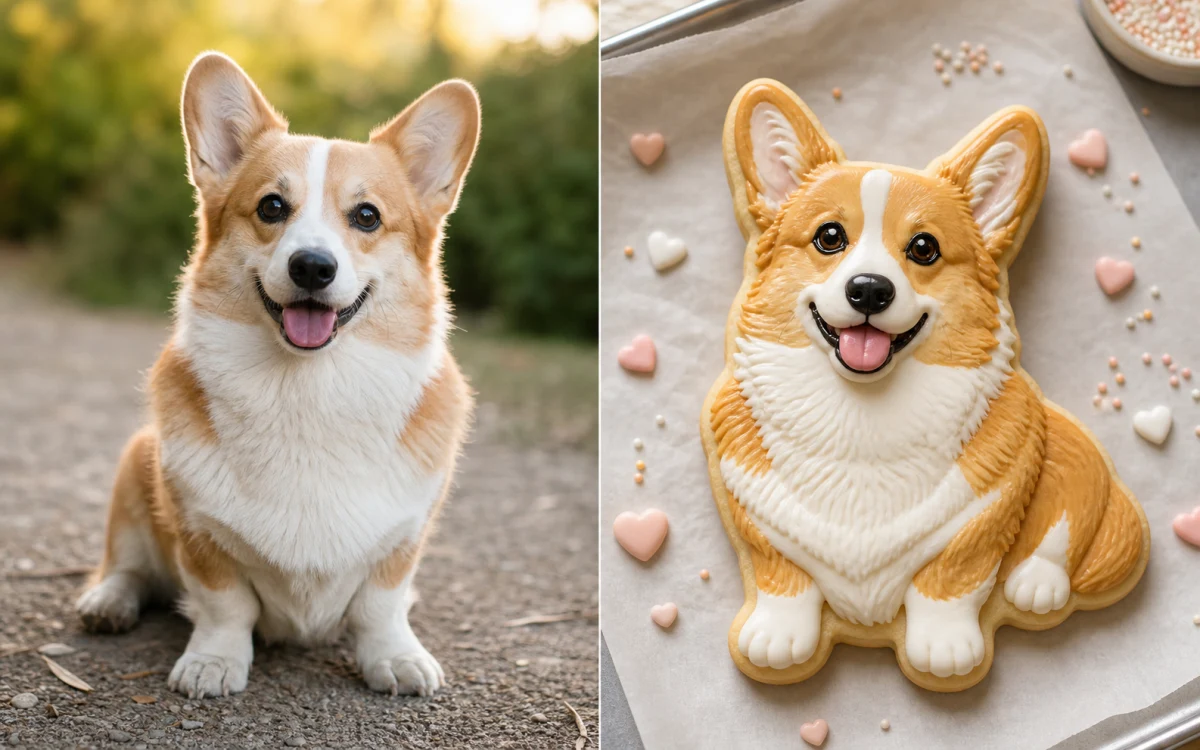
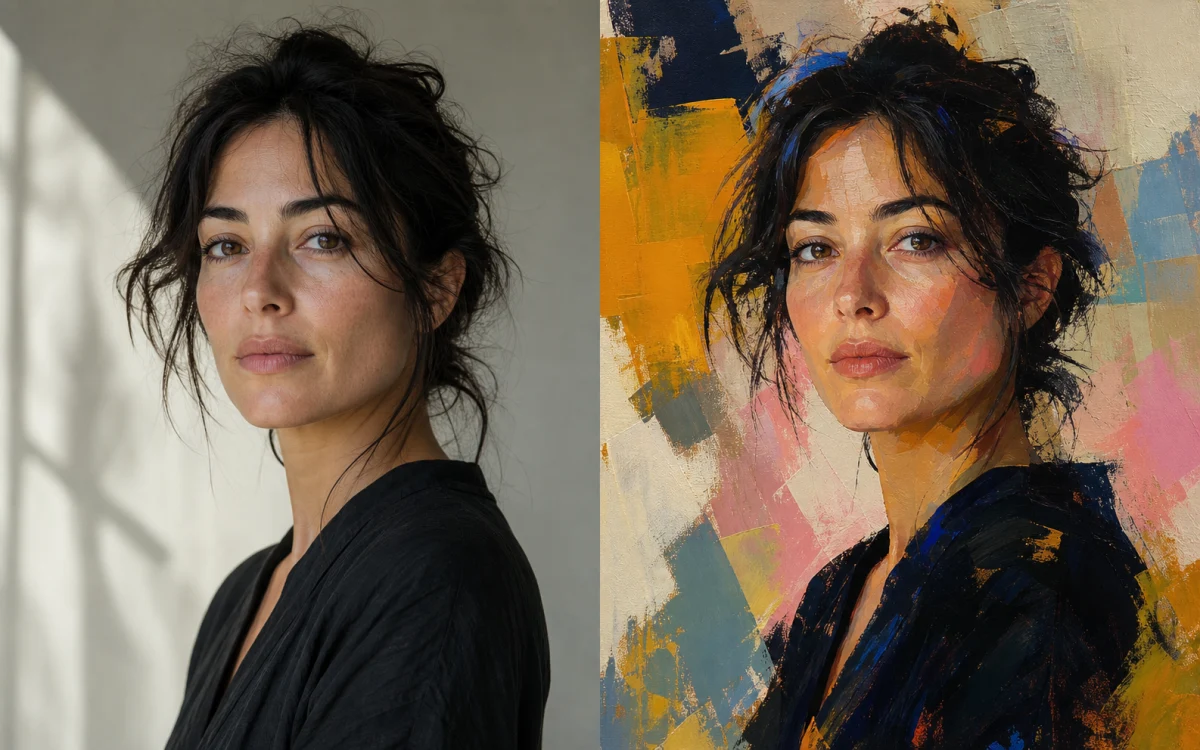


Use one reference image as the visual anchor, then change style, setting, lighting, composition, or supporting references while preserving the details that matter.
Use a clear source portrait as the anchor, then describe the clothing, art direction, color palette, or environment you want to change without rebuilding the person from scratch.
Keep a product's shape and material cues while changing the backdrop, lighting direction, crop, or visual presentation for catalog, social, or campaign concepts.
Use separate references for people, products, style, or environment when one image does not contain every visual cue you want. An edit-capable model can use up to its supported reference limit.
Reuse the same source across different prompts, models, aspect ratios, and styles to explore campaign art, covers, profile images, product concepts, and other related visual directions.
Jump into another ClipLumi workflow without starting over.
Choose a plan for regular creation, or use a credit pack for occasional generations.
Billed annually · $240$120/year
Choose ProAvailable image models
 FLUX SchnellFLUX.2 Klein 4B
 GPT Image 2GPT Image 1.5
 Nano Banana 2 Lite
 Seedream 5.0 ProNano Banana 2Seedream 5.0 LiteSeedream 4.5
Billed annually · $480$240/year
Choose UltimateAvailable image models
FLUX SchnellFLUX.2 Klein 4BGPT Image 2GPT Image 1.5Nano Banana 2 LiteSeedream 5.0 ProNano Banana 2Seedream 5.0 LiteSeedream 4.5Billed annually · $960$480/year
Choose MaxAvailable image models
FLUX SchnellFLUX.2 Klein 4BGPT Image 2GPT Image 1.5Nano Banana 2 LiteSeedream 5.0 ProNano Banana 2Seedream 5.0 LiteSeedream 4.5Questions about reference images, prompts, models, sign-in, and credits.
An image-to-image AI generator creates a new image from an existing image plus a prompt. The source acts as a visual reference, so you can change style, background, lighting, composition, or supporting details while asking the model to preserve important subject or product cues.
Upload a source image, describe the change you want, name the details that should stay consistent, choose an edit-capable model and output settings, then sign in to generate. Clear change-and-preserve instructions usually give the model a stronger brief than a style name alone.
Use a clear image that shows the subject, product, composition, or style you want the model to follow. In the prompt, explain the role of the reference and separate what should change from what should stay the same. ClipLumi supports up to three references when the selected model allows them.
Yes. Multi-reference models can accept up to three images in ClipLumi. Give each reference a clear role—for example, one for the person, one for a product, and one for the visual setting—and keep perspective, scale, and lighting instructions compatible.
Use a sharp reference and explicitly preserve recognizable features, pose, proportions, product shape, materials, camera angle, or brand colors. Change one major variable at a time when consistency matters. No image-to-image model can guarantee exact preservation, so review important details before use.
It depends on the task. ClipLumi offers edit-capable GPT Image, Nano Banana, and Seedream models with different strengths in prompt adherence, multi-reference work, photorealism, resolution, speed, and credit cost. Use the Popular Models section as a starting point, then compare the model against your own reference.
State the main change first, then list the details to preserve. For example: replace the background with a clean studio scene while keeping the product shape, colors, materials, camera angle, and natural shadows consistent. Specific constraints are more useful than vague requests such as “make it better.”
Yes. ClipLumi requires sign-in before generation so credits and History can be attached to your account. The exact credit cost is shown before you generate and varies by model, settings, output count, and some reference-image options.